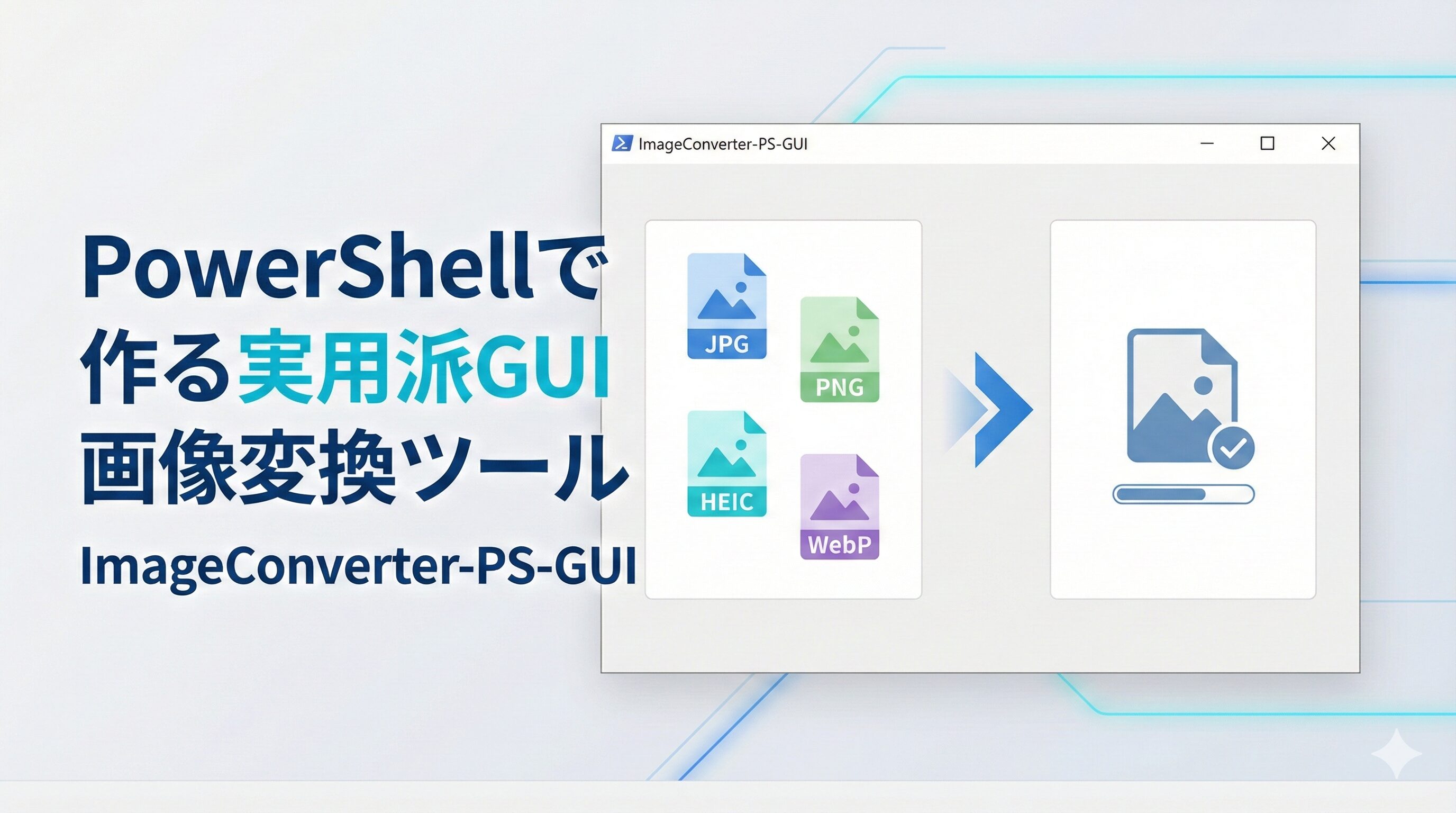
はじめに|画像変換、地味に面倒じゃないですか?
写真や画像を整理していると、こんな場面に出くわすことはありませんか。
- iPhoneで撮った HEIC と、昔からの JPG が混在している
- Box やクラウド保存用に、サイズや形式を揃えたい
- ImageMagick は便利だけど、毎回コマンドを打つのは正直しんどい
私自身、子どもの写真や業務用画像を整理する中で、 「もっと安全に、迷わず、まとめて処理できないか」と感じていました。
そこで作ったのが、PowerShell製のGUI画像変換ツール ImageConverter-PS-GUI です。
ImageConverter-PS-GUI とは
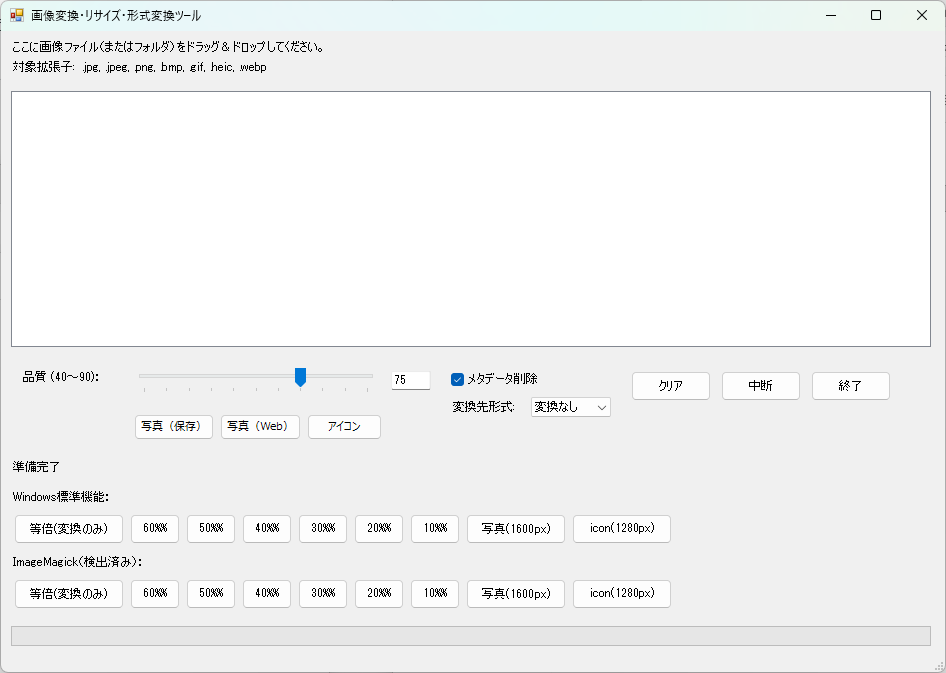
ImageConverter-PS-GUI は、PowerShell で動作する 画像変換・リサイズ用GUIツール です。
コマンド操作を極力排除し、 GUI上で設定して実行するだけ で、複数の画像を一括処理できます。
特徴はとてもシンプルです。
- PowerShell だけで動作
- GUI操作で画像をまとめて処理
- 元画像を壊さない設計
- 実運用で「よく使う処理」を優先
「PowerShell だけど、PowerShellっぽくない」 そんなツールを目指しました。
開発の背景|なぜ作ったのか
このツールは、次のような実体験から生まれました。
- HEIC写真をまとめて JPG に変換したい
- Box に保存するため、画質と容量のバランスを取りたい
- コマンド入力ミスで元画像を壊したくない
ImageMagick は非常に強力ですが、 オプション指定を間違えると事故につながる こともあります。
そこで、

「よく使うパターンをGUIに閉じ込めて、安全に実行できるツール」
を PowerShell で作ることにしました。
このツールでできること
ImageConverter-PS-GUI では、次のような処理が行えます。
画像リサイズ
- 指定サイズへの一括リサイズ
- 比率を維持したまま縮小
- リサイズせずに形式変換のみも可能
画像形式変換
- JPG / PNG / WebP / HEIC を入力として受付
- 出力は JPG / PNG / WebP / 元形式
- リサイズと形式変換の同時実行にも対応
画質・最適化
- JPG 画質を数値で指定
- メタデータ(EXIF)の保持/削除
- ImageMagick を使った高品質変換
対応している画像形式
入力形式
- JPG
- PNG
- WebP
- HEIC
出力形式
- JPG
- PNG
- WebP
- 元形式のまま出力
※ HEIC を扱う場合は、HEIC 対応ビルドの ImageMagick が必要です。
実運用を意識した設計ポイント
元画像を絶対に上書きしない
変換後の画像は、必ず 別フォルダ に出力されます。
- 元画像はそのまま保持
- 失敗してもやり直しが可能
「安全第一」を最優先にしています。
用途別フォルダ分離
処理内容に応じて、出力フォルダを分けています。
- 写真向け
- アイコン向け
- ImageMagick 処理用
後から見返したときも、 「どの用途で作った画像か」が分かりやすくなります。
使い方|基本は4ステップ
ImageConverter-PS-GUI.ps1を実行- GUI画面で画像ファイルを選択
- 出力形式・画質・サイズを指定
- 実行ボタンを押す
これだけで、複数の画像をまとめて処理できます。
長期保存向けおすすめ設定
実際によく使っている設定を紹介します。
- 出力形式:JPG
- 画質:90 前後
- 解像度:元サイズ維持、または長辺 1600px 程度
- メタデータ:位置情報のみ削除(必要に応じて)
この設定にすると、
- 見た目の劣化が分かりにくい
- ファイルサイズを抑えられる
- 将来の互換性が高い
というバランスの良い保存ができます。
ツールのソースコード
下記のソースコードをメモ帳などで貼り付けて拡張子を ps1 に変更すると利用することができます。
Add-Type -AssemblyName System.Windows.Forms
Add-Type -AssemblyName System.Drawing

[System.Windows.Forms.Application]::EnableVisualStyles()

# 対象拡張子(HEIC を追加)
$supportedExtensions = @(".jpg", ".jpeg", ".png", ".bmp", ".gif", ".heic", ".webp")

# 中断フラグ
$script:cancelRequested = $false

# ------------------------------------------------------------
# ImageMagick 検出関数
# ------------------------------------------------------------
function Find-ImageMagick {
    try {
        $cmd = Get-Command magick.exe -ErrorAction SilentlyContinue
        if ($cmd) { return $cmd.Path }
    } catch {}

    $searchBases = @(
        "C:\Program Files",
        "C:\Program Files (x86)"
    )

    foreach ($base in $searchBases) {
        if (-not (Test-Path $base)) { continue }
        try {
            $imDirs = Get-ChildItem -Path $base -Directory -Filter "ImageMagick*" -ErrorAction SilentlyContinue
            foreach ($d in $imDirs) {
                $mag = Join-Path $d.FullName "magick.exe"
                if (Test-Path $mag) { return $mag }
            }
        } catch {}
    }

    return $null
}

$magickPath  = Find-ImageMagick
$hasMagick   = -not [string]::IsNullOrEmpty($magickPath)

# ------------------------------------------------------------
# フォーム作成
# ------------------------------------------------------------
$form                = New-Object System.Windows.Forms.Form
$form.Text           = "画像変換・リサイズ・形式変換ツール"
$form.Width          = 960  # UI調整: 900 -> 960 (+60px)
$form.Height         = 680
$form.StartPosition  = "CenterScreen"

$label               = New-Object System.Windows.Forms.Label
$label.Text          = "ここに画像ファイル(またはフォルダ)をドラッグ&ドロップしてください。"
$label.AutoSize      = $true
$label.Top           = 10
$label.Left          = 10

# 対象拡張子表示ラベル
$extLabel            = New-Object System.Windows.Forms.Label
$extLabel.AutoSize   = $true
$extLabel.Top        = 30
$extLabel.Left       = 10
$extLabel.Text       = "対象拡張子: .jpg, .jpeg, .png, .bmp, .gif, .heic, .webp"

$listBox             = New-Object System.Windows.Forms.ListBox
$listBox.Top         = 60
$listBox.Left        = 10
$listBox.Width       = 920  # UI調整: 860 -> 920 (+60px)
$listBox.Height      = 260
$listBox.AllowDrop   = $true

# オプションパネル(品質・メタデータ・形式選択・クリア・中断・終了)
$optionsPanel              = New-Object System.Windows.Forms.Panel
$optionsPanel.Top          = 330
$optionsPanel.Left         = 10
$optionsPanel.Width        = 920  # UI調整: 860 -> 920 (+60px)
$optionsPanel.Height       = 90 # ボタン追加に伴い少し高さを確保

# 品質ラベル
$qualityLabel              = New-Object System.Windows.Forms.Label
$qualityLabel.Text         = "品質 (40~90):"
$qualityLabel.AutoSize     = $true
$qualityLabel.Top          = 10
$qualityLabel.Left         = 10

# 品質スライダー
$qualityTrackBar           = New-Object System.Windows.Forms.TrackBar
$qualityTrackBar.Minimum   = 40
$qualityTrackBar.Maximum   = 90
$qualityTrackBar.Value     = 75
$qualityTrackBar.TickFrequency = 5
$qualityTrackBar.SmallChange   = 1
$qualityTrackBar.LargeChange   = 5
$qualityTrackBar.Top       = 5
$qualityTrackBar.Left      = 120
$qualityTrackBar.Width     = 250

# 品質テキストボックス
$qualityTextBox            = New-Object System.Windows.Forms.TextBox
$qualityTextBox.Top        = 10
$qualityTextBox.Left       = 380
$qualityTextBox.Width      = 40
$qualityTextBox.Text       = $qualityTrackBar.Value.ToString()

# ▼▼▼ 追加:品質プリセットボタン設定 ▼▼▼
# プリセット定義(順序保持のため [ordered] を使用)
$qualityPresets = [ordered]@{
    "写真(保存)" = 90
    "写真(Web)"  = 75
    "アイコン"     = 80
}

# プリセットボタン配置用パネル(スライダーの下に配置)
$presetPanel = New-Object System.Windows.Forms.FlowLayoutPanel
$presetPanel.Top          = 50   # UI調整: 45 -> 50 (+5px)
$presetPanel.Left         = 120  # スライダーの左端に合わせる
$presetPanel.Width        = 300
$presetPanel.Height       = 35
$presetPanel.FlowDirection = "LeftToRight"
$presetPanel.AutoSize     = $true

# 共通イベントハンドラ
$presetClickHandler = {
    param($sender, $e)
    # Tag に設定された品質値を取得してスライダーに反映
    # ※スライダーの変更イベントが発火し、テキストボックスも自動更新される
    $val = [int]$sender.Tag
    $qualityTrackBar.Value = $val
}

# ボタン生成ループ
foreach ($key in $qualityPresets.Keys) {
    $pBtn = New-Object System.Windows.Forms.Button
    $pBtn.Text      = $key
    $pBtn.Tag       = $qualityPresets[$key] # 品質値をTagに保持
    $pBtn.AutoSize  = $true
    $pBtn.Height    = 26
    $pBtn.Font      = New-Object System.Drawing.Font("Meiryo UI", 8) # 少し小さめ
    $pBtn.Cursor    = [System.Windows.Forms.Cursors]::Hand
    $pBtn.Add_Click($presetClickHandler)

    $presetPanel.Controls.Add($pBtn)
}
# ▲▲▲ 追加終了 ▲▲▲


# メタデータ削除チェック
$stripMetadataCheck        = New-Object System.Windows.Forms.CheckBox
$stripMetadataCheck.Text   = "メタデータ削除"
$stripMetadataCheck.AutoSize = $true
$stripMetadataCheck.Top    = 10
$stripMetadataCheck.Left   = 440
$stripMetadataCheck.Checked = $true

# 変換先形式選択コンボボックス
$formatLabel               = New-Object System.Windows.Forms.Label
$formatLabel.Text          = "変換先形式:"
$formatLabel.AutoSize      = $true
$formatLabel.Top           = 40
$formatLabel.Left          = 440

$formatComboBox            = New-Object System.Windows.Forms.ComboBox
$formatComboBox.DropDownStyle = "DropDownList"
$formatComboBox.Items.AddRange(@("変換なし", "jpg", "png", "bmp", "gif", "webp"))
$formatComboBox.SelectedIndex = 0 # デフォルトは変換なし
$formatComboBox.Top        = 36
$formatComboBox.Left       = 520
$formatComboBox.Width      = 80

# クリアボタン(オプションパネル内)
$clearBtn = New-Object System.Windows.Forms.Button
$clearBtn.Width  = 80
$clearBtn.Height = 30
$clearBtn.Text   = "クリア"
$clearBtn.Top    = 10
$clearBtn.Left   = 620
$clearBtn.Anchor = "Top, Right" # UI調整: アンカー追加

# 中断ボタン
$cancelBtn = New-Object System.Windows.Forms.Button
$cancelBtn.Width  = 80
$cancelBtn.Height = 30
$cancelBtn.Text   = "中断"
$cancelBtn.Top    = 10
$cancelBtn.Left   = 710
$cancelBtn.Anchor = "Top, Right" # UI調整: アンカー追加

# 終了ボタン
$exitBtn = New-Object System.Windows.Forms.Button
$exitBtn.Width  = 80
$exitBtn.Height = 30
$exitBtn.Text   = "終了"
$exitBtn.Top    = 10
$exitBtn.Left   = 800
$exitBtn.Anchor = "Top, Right" # UI調整: アンカー追加

# コントロール追加
$optionsPanel.Controls.Add($qualityLabel)
$optionsPanel.Controls.Add($qualityTrackBar)
$optionsPanel.Controls.Add($qualityTextBox)
$optionsPanel.Controls.Add($presetPanel)      # 追加:プリセットパネル
$optionsPanel.Controls.Add($stripMetadataCheck)
$optionsPanel.Controls.Add($formatLabel)
$optionsPanel.Controls.Add($formatComboBox)
$optionsPanel.Controls.Add($clearBtn)
$optionsPanel.Controls.Add($cancelBtn)
$optionsPanel.Controls.Add($exitBtn)

# ステータスラベル
$statusLabel         = New-Object System.Windows.Forms.Label
$statusLabel.Text    = "準備完了"
$statusLabel.AutoSize= $true
$statusLabel.Top     = 430  # オプションパネル拡張に合わせて少し下へ
$statusLabel.Left    = 10

# Windows標準機能グループ
$winGroupLabel              = New-Object System.Windows.Forms.Label
$winGroupLabel.Text         = "Windows標準機能:"
$winGroupLabel.AutoSize     = $true
$winGroupLabel.Top          = 460
$winGroupLabel.Left         = 10

$winButtonPanel             = New-Object System.Windows.Forms.FlowLayoutPanel
$winButtonPanel.Top         = 480
$winButtonPanel.Left        = 10
$winButtonPanel.Width       = 920  # UI調整: 860 -> 920 (+60px)
$winButtonPanel.Height      = 40
$winButtonPanel.WrapContents = $false
$winButtonPanel.AutoScroll   = $false

# ImageMagickグループ
$imGroupLabel               = New-Object System.Windows.Forms.Label
if ($hasMagick) {
    $imGroupLabel.Text      = "ImageMagick(検出済み):"
} else {
    $imGroupLabel.Text      = "ImageMagick(未検出):"
}
$imGroupLabel.AutoSize      = $true
$imGroupLabel.Top           = 525
$imGroupLabel.Left          = 10

$imButtonPanel              = New-Object System.Windows.Forms.FlowLayoutPanel
$imButtonPanel.Top          = 545
$imButtonPanel.Left         = 10
$imButtonPanel.Width        = 920  # UI調整: 860 -> 920 (+60px)
$imButtonPanel.Height       = 40
$imButtonPanel.WrapContents = $false
$imButtonPanel.AutoScroll   = $false

# 進行バー
$progressBar                = New-Object System.Windows.Forms.ProgressBar
$progressBar.Top            = 595
$progressBar.Left           = 10
$progressBar.Width          = 920  # UI調整: 860 -> 920 (+60px)
$progressBar.Height         = 20
$progressBar.Minimum        = 0
$progressBar.Step           = 1

# フォームに追加
$form.Controls.Add($label)
$form.Controls.Add($extLabel)
$form.Controls.Add($listBox)
$form.Controls.Add($optionsPanel)
$form.Controls.Add($statusLabel)
$form.Controls.Add($winGroupLabel)
$form.Controls.Add($winButtonPanel)
$form.Controls.Add($imGroupLabel)
$form.Controls.Add($imButtonPanel)
$form.Controls.Add($progressBar)

# ------------------------------------------------------------
# 品質スライダーとテキストボックス同期
# ------------------------------------------------------------
$script:isUpdatingQuality = $false

$qualityTrackBar.Add_ValueChanged({
    if ($script:isUpdatingQuality) { return }
    $script:isUpdatingQuality = $true
    $qualityTextBox.Text = $qualityTrackBar.Value.ToString()
    $script:isUpdatingQuality = $false
})

$qualityTextBox.Add_TextChanged({
    if ($script:isUpdatingQuality) { return }
    $value = 0
    if ([int]::TryParse($qualityTextBox.Text, [ref]$value)) {
        if     ($value -lt 40) { $value = 40 }
        elseif ($value -gt 90) { $value = 90 }
        $script:isUpdatingQuality = $true
        $qualityTrackBar.Value = $value
        $qualityTextBox.Text   = $value.ToString()
        $script:isUpdatingQuality = $false
    }
})

# ------------------------------------------------------------
# Drag & Drop 処理
# ------------------------------------------------------------
$listBox.Add_DragEnter({
    param($sender, $e)
    if ($e.Data.GetDataPresent([System.Windows.Forms.DataFormats]::FileDrop)) {
        $e.Effect = [System.Windows.Forms.DragDropEffects]::Copy
    }
})

$listBox.Add_DragDrop({
    param($sender, $e)
    $paths = $e.Data.GetData([System.Windows.Forms.DataFormats]::FileDrop)

    foreach ($path in $paths) {
        if (-not (Test-Path $path)) { continue }
        $item = Get-Item $path

        if ($item.PSIsContainer) {
            Get-ChildItem $item.FullName -Recurse -File |
                Where-Object { $supportedExtensions -contains $_.Extension.ToLower() } |
                ForEach-Object {
                    if (-not $listBox.Items.Contains($_.FullName)) {
                        [void]$listBox.Items.Add($_.FullName)
                    }
                }
        }
        else {
            $ext = $item.Extension.ToLower()
            if ($supportedExtensions -contains $ext) {
                if (-not $listBox.Items.Contains($item.FullName)) {
                    [void]$listBox.Items.Add($item.FullName)
                }
            }
        }
    }

    $statusLabel.Text = "ファイル数: {0}" -f $listBox.Items.Count
})

# ------------------------------------------------------------
# Windows標準機能での処理(拡張子変換対応)
# ------------------------------------------------------------
function Resize-ImagesWindows {
    param(
        [double]$Scale,
        [int]$JpegQuality,
        [string]$TargetFormat, # "jpg", "png" 等。 "変換なし" なら空文字かnull
        [System.Windows.Forms.ListBox]$ListBox,
        [System.Windows.Forms.Label]$StatusLabel,
        [System.Windows.Forms.ProgressBar]$ProgressBar,
        [System.Windows.Forms.Form]$Form,
        [string]$OutDirName
    )

    if ($ListBox.Items.Count -eq 0) {
        [System.Windows.Forms.MessageBox]::Show("ファイルが追加されていません。")
        return
    }

    # WebPチェック(Windows標準では非対応とする)
    if ($TargetFormat -eq "webp") {
        [System.Windows.Forms.MessageBox]::Show("Windows標準機能ではWebP形式への変換はサポートされていません。`nImageMagickを使用するか、他の形式を選択してください。")
        return
    }

    Add-Type -AssemblyName System.Drawing

    $percent = [int]($Scale * 100)
    $actionText = if ($percent -eq 100) { "変換" } else { "縮小" }

    $StatusLabel.Text = "処理中...(Windows標準機能 / ${percent}%)"
    $Form.UseWaitCursor = $true
    $script:cancelRequested = $false

    $ProgressBar.Value   = 0
    $ProgressBar.Maximum = $ListBox.Items.Count

    foreach ($path in $ListBox.Items) {
        if ($script:cancelRequested) {
            $StatusLabel.Text = "中断しました"
            break
        }

        if (-not (Test-Path $path)) { continue }

        try {
            $file = Get-Item $path
            $ext  = $file.Extension.ToLower()

            # HEIC は Windows 標準機能では処理しない
            if ($ext -eq ".heic") {
                # ログに出すなどの処理があってもよい
                continue
            }

            $img  = [System.Drawing.Image]::FromFile($file.FullName)

            # EXIF Orientation 読み取り・回転
            $orientationId = 0x0112
            if ($img.PropertyIdList -contains $orientationId) {
                $prop        = $img.GetPropertyItem($orientationId)
                $orientation = [BitConverter]::ToInt16($prop.Value, 0)

                switch ($orientation) {
                    3 { $img.RotateFlip([System.Drawing.RotateFlipType]::Rotate180FlipNone) }
                    6 { $img.RotateFlip([System.Drawing.RotateFlipType]::Rotate90FlipNone)  }
                    8 { $img.RotateFlip([System.Drawing.RotateFlipType]::Rotate270FlipNone) }
                }

                try { $img.RemovePropertyItem($orientationId) } catch {}
            }

            $newWidth  = [int]($img.Width  * $Scale)
            $newHeight = [int]($img.Height * $Scale)

            if ($newWidth -lt 1 -or $newHeight -lt 1) {
                $img.Dispose()
                continue
            }

            # リサイズ実行
            $bmp   = New-Object System.Drawing.Bitmap $newWidth, $newHeight
            $graph = [System.Drawing.Graphics]::FromImage($bmp)

            $graph.InterpolationMode  = [System.Drawing.Drawing2D.InterpolationMode]::HighQualityBicubic
            $graph.CompositingQuality = [System.Drawing.Drawing2D.CompositingQuality]::HighQuality
            $graph.SmoothingMode      = [System.Drawing.Drawing2D.SmoothingMode]::HighQuality
            $graph.PixelOffsetMode    = [System.Drawing.Drawing2D.PixelOffsetMode]::HighQuality

            $graph.DrawImage($img, 0, 0, $newWidth, $newHeight)

            # 保存先ディレクトリ決定
            $dir = Split-Path $file.FullName -Parent
            if ([string]::IsNullOrEmpty($OutDirName)) {
                $outDir = Join-Path $dir ("Output_Win_{0}" -f $percent)
            } else {
                $outDir = Join-Path $dir $OutDirName
            }
            if (-not (Test-Path $outDir)) {
                New-Item -ItemType Directory -Path $outDir | Out-Null
            }

            # 保存時の拡張子決定
            $saveExt = $ext
            if (-not [string]::IsNullOrEmpty($TargetFormat) -and $TargetFormat -ne "変換なし") {
                $saveExt = "." + $TargetFormat
            }

            $outPath = Join-Path $outDir ([System.IO.Path]::GetFileNameWithoutExtension($file.Name) + $saveExt)

            # 拡張子に応じた保存
            if ($saveExt -in @(".jpg", ".jpeg")) {
                $codec = [System.Drawing.Imaging.ImageCodecInfo]::GetImageEncoders() |
                         Where-Object { $_.MimeType -eq "image/jpeg" }
                $encoder      = [System.Drawing.Imaging.Encoder]::Quality
                $encoderParms = New-Object System.Drawing.Imaging.EncoderParameters(1)
                $encoderParms.Param[0] = New-Object System.Drawing.Imaging.EncoderParameter($encoder, [int64]$JpegQuality)
                $bmp.Save($outPath, $codec, $encoderParms)
            }
            elseif ($saveExt -eq ".png") {
                $bmp.Save($outPath, [System.Drawing.Imaging.ImageFormat]::Png)
            }
            elseif ($saveExt -eq ".gif") {
                $bmp.Save($outPath, [System.Drawing.Imaging.ImageFormat]::Gif)
            }
            elseif ($saveExt -eq ".bmp") {
                $bmp.Save($outPath, [System.Drawing.Imaging.ImageFormat]::Bmp)
            }
            else {
                # フォールバック(元の形式など)
                try {
                    $bmp.Save($outPath)
                } catch {
                    # 保存失敗時(対応外形式など)
                    $bmp.Save($outPath + ".png", [System.Drawing.Imaging.ImageFormat]::Png)
                }
            }

            $graph.Dispose()
            $bmp.Dispose()
            $img.Dispose()
        }
        catch {
            [System.Windows.Forms.MessageBox]::Show("Windows標準機能処理中にエラーが発生しました。`n$path`n`n$($_.Exception.Message)")
        }

        if ($ProgressBar.Value -lt $ProgressBar.Maximum) {
            $ProgressBar.PerformStep()
        }
        [System.Windows.Forms.Application]::DoEvents()
    }

    $Form.UseWaitCursor = $false
    if (-not $script:cancelRequested) {
        $StatusLabel.Text = "完了しました(Windows標準機能 / ${percent}%)"
    }
}

# ------------------------------------------------------------
# ImageMagick 処理(拡張子変換対応)
# ------------------------------------------------------------
function Resize-ImagesMagick {
    param(
        [double]$Scale,
        [int]$Quality,
        [bool]$StripMetadata,
        [string]$TargetFormat, # "jpg", "png", "webp", "heic" 等
        [string]$MagickPath,
        [System.Windows.Forms.ListBox]$ListBox,
        [System.Windows.Forms.Label]$StatusLabel,
        [System.Windows.Forms.ProgressBar]$ProgressBar,
        [System.Windows.Forms.Form]$Form,
        [string]$OutDirName
    )

    if (-not (Test-Path $MagickPath)) {
        [System.Windows.Forms.MessageBox]::Show("ImageMagick (magick.exe) が見つかりません。")
        return
    }

    if ($ListBox.Items.Count -eq 0) {
        [System.Windows.Forms.MessageBox]::Show("ファイルが追加されていません。")
        return
    }

    $percent = [int]($Scale * 100)
    $StatusLabel.Text = "処理中...(ImageMagick / ${percent}%)"
    $Form.UseWaitCursor = $true
    $script:cancelRequested = $false

    $ProgressBar.Value   = 0
    $ProgressBar.Maximum = $ListBox.Items.Count

    foreach ($path in $ListBox.Items) {
        if ($script:cancelRequested) {
            $StatusLabel.Text = "中断しました"
            break
        }

        if (-not (Test-Path $path)) { continue }

        try {
            $file   = Get-Item $path
            $dir    = Split-Path $file.FullName -Parent
            $base   = [System.IO.Path]::GetFileNameWithoutExtension($file.Name)
            $srcExt = [System.IO.Path]::GetExtension($file.Name).ToLower()

            if ([string]::IsNullOrEmpty($OutDirName)) {
                $outDir = Join-Path $dir ("Output_IM_{0}" -f $percent)
            } else {
                $outDir = Join-Path $dir $OutDirName
            }
            if (-not (Test-Path $outDir)) {
                New-Item -ItemType Directory -Path $outDir | Out-Null
            }

            # 出力拡張子を決定
            if (-not [string]::IsNullOrEmpty($TargetFormat) -and $TargetFormat -ne "変換なし") {
                $destExt = "." + $TargetFormat
            }
            else {
                # 変換なしの場合
                if ($srcExt -eq ".heic") {
                    # HEIC->HEICはImageMagickでも環境によっては遅い/不可な場合があるが、
                    # ユーザーが明示的に指定しない場合は維持を試みる。
                    # エラー回避のためJPGにするロジックは今回削除し、ユーザー指定に従う
                    $destExt = $srcExt
                }
                else {
                    $destExt = $srcExt
                }
            }

            $outPath = Join-Path $outDir ($base + $destExt)

            $args = @(
                "`"$($file.FullName)`"",
                "-auto-orient",
                "-resize", "${percent}%",
                "-quality", $Quality.ToString()
            )

            # JPEG / WebP / HEIC はサンプリングファクタなどを調整推奨だが、汎用的に設定
            if ($destExt -in @(".jpg", ".jpeg", ".webp", ".heic")) {
                # WebPやJPEGで有効なオプション(必要に応じて)
                # $args += @("-sampling-factor", "4:2:0")
            }

            if ($StripMetadata) {
                $args += "-strip"
            }

            $args += "`"$outPath`""

            $psi = New-Object System.Diagnostics.ProcessStartInfo
            $psi.FileName = $MagickPath
            $psi.Arguments = $args -join " "
            $psi.CreateNoWindow = $true
            $psi.UseShellExecute = $false
            $psi.RedirectStandardOutput = $true
            $psi.RedirectStandardError  = $true

            $proc = New-Object System.Diagnostics.Process
            $proc.StartInfo = $psi
            [void]$proc.Start()
            $null   = $proc.StandardOutput.ReadToEnd()
            $stderr = $proc.StandardError.ReadToEnd()
            $proc.WaitForExit()

            if ($proc.ExitCode -ne 0) {
                [System.Windows.Forms.MessageBox]::Show("ImageMagick処理中にエラーが発生しました。`n$path`n`n$stderr")
            }
        }
        catch {
            [System.Windows.Forms.MessageBox]::Show("ImageMagick処理中にエラーが発生しました。`n$path`n`n$($_.Exception.Message)")
        }

        if ($ProgressBar.Value -lt $ProgressBar.Maximum) {
            $ProgressBar.PerformStep()
        }
        [System.Windows.Forms.Application]::DoEvents()
    }

    $Form.UseWaitCursor = $false
    if (-not $script:cancelRequested) {
        $StatusLabel.Text = "完了しました(ImageMagick / ${percent}%)"
    }
}

# ------------------------------------------------------------
# 幅から縮小率を計算するヘルパー
# ------------------------------------------------------------
function Get-ScaleFromTargetWidth {
    param(
        [int]$TargetWidth,
        [System.Windows.Forms.ListBox]$ListBox,
        [string]$MagickPath = $null,
        [switch]$UseMagick
    )

    if ($ListBox.Items.Count -eq 0) {
        [System.Windows.Forms.MessageBox]::Show("ファイルが追加されていません。") | Out-Null
        return $null
    }

    Add-Type -AssemblyName System.Drawing

    $maxWidth = 0

    foreach ($path in $ListBox.Items) {
        if (-not (Test-Path $path)) { continue }
        $w = $null

        try {
            $img = [System.Drawing.Image]::FromFile($path)
            $w = [int]$img.Width
            $img.Dispose()
        }
        catch {
            if ($UseMagick -and -not [string]::IsNullOrWhiteSpace($MagickPath)) {
                try {
                    $out = & $MagickPath identify -ping -format "%w" -- "$path" 2>$null
                    if ($out -match '^\d+$') { $w = [int]$out }
                } catch {}
            }
        }

        if ($null -ne $w -and $w -gt $maxWidth) {
            $maxWidth = $w
        }
    }

    if ($maxWidth -le 0) {
        [System.Windows.Forms.MessageBox]::Show("画像の幅を取得できませんでした。") | Out-Null
        return $null
    }

    if ($maxWidth -le $TargetWidth) {
        [System.Windows.Forms.MessageBox]::Show("すべての画像が指定した幅以下のため、リサイズは行いません。") | Out-Null
        return $null
    }

    return [double]$TargetWidth / [double]$maxWidth
}

# ------------------------------------------------------------
# 幅指定実行ラッパー
# ------------------------------------------------------------
function Invoke-ResizeByWidthWindows {
    param([int]$TargetWidth, [string]$OutDirName)
    $scale = Get-ScaleFromTargetWidth -TargetWidth $TargetWidth -ListBox $listBox
    if ($null -eq $scale) { return }

    $q = $qualityTrackBar.Value
    $fmt = $formatComboBox.SelectedItem.ToString()
    Resize-ImagesWindows -Scale $scale -JpegQuality $q -TargetFormat $fmt -ListBox $listBox -StatusLabel $statusLabel -ProgressBar $progressBar -Form $form -OutDirName $OutDirName
}

function Invoke-ResizeByWidthMagick {
    param([int]$TargetWidth, [string]$OutDirName)
    $scale = Get-ScaleFromTargetWidth -TargetWidth $TargetWidth -ListBox $listBox -MagickPath $magickPath -UseMagick
    if ($null -eq $scale) { return }

    $q  = $qualityTrackBar.Value
    $st = $stripMetadataCheck.Checked
    $fmt = $formatComboBox.SelectedItem.ToString()

    Resize-ImagesMagick -Scale $scale -Quality $q -StripMetadata $st -TargetFormat $fmt -MagickPath $magickPath -ListBox $listBox -StatusLabel $statusLabel -ProgressBar $progressBar -Form $form -OutDirName $OutDirName
}

# ------------------------------------------------------------
# ボタン生成
# ------------------------------------------------------------

# ■■ Windows標準機能ボタン ■■
# 1. 形式変換のみ (Scale 1.0)
$btnWinConvert = New-Object System.Windows.Forms.Button
$btnWinConvert.Width  = 110
$btnWinConvert.Height = 30
$btnWinConvert.Text   = "等倍(変換のみ)"
$btnWinConvert.Add_Click({
    $q = $qualityTrackBar.Value
    $fmt = $formatComboBox.SelectedItem.ToString()
    Resize-ImagesWindows -Scale 1.0 -JpegQuality $q -TargetFormat $fmt -ListBox $listBox -StatusLabel $statusLabel -ProgressBar $progressBar -Form $form -OutDirName "Converted_Win"
})
$winButtonPanel.Controls.Add($btnWinConvert)

# 2. 縮小ボタン (Scale < 1.0)
$scales = @(60, 50, 40, 30, 20, 10)
foreach ($p in $scales) {
    $btn = New-Object System.Windows.Forms.Button
    $btn.Width  = 50
    $btn.Height = 30
    $btn.Text   = "{0}%%" -f $p
    $btn.Tag    = $p / 100

    $btn.Add_Click({
        param($sender, $e)
        $scale = [double]$sender.Tag
        $q = $qualityTrackBar.Value
        $fmt = $formatComboBox.SelectedItem.ToString()
        Resize-ImagesWindows -Scale $scale -JpegQuality $q -TargetFormat $fmt -ListBox $listBox -StatusLabel $statusLabel -ProgressBar $progressBar -Form $form
    })
    $winButtonPanel.Controls.Add($btn)
}

# 3. 幅指定ボタン
$btnWin1600 = New-Object System.Windows.Forms.Button
$btnWin1600.Width  = 100
$btnWin1600.Height = 30
$btnWin1600.Text   = "写真(1600px)"
$btnWin1600.Add_Click({ Invoke-ResizeByWidthWindows -TargetWidth 1600 -OutDirName "Resized_photo" })
$winButtonPanel.Controls.Add($btnWin1600)

$btnWin1280 = New-Object System.Windows.Forms.Button
$btnWin1280.Width  = 100
$btnWin1280.Height = 30
$btnWin1280.Text   = "icon(1280px)"
$btnWin1280.Add_Click({ Invoke-ResizeByWidthWindows -TargetWidth 1280 -OutDirName "Resized_icon" })
$winButtonPanel.Controls.Add($btnWin1280)


# ■■ ImageMagickボタン ■■
# 1. 形式変換のみ (Scale 1.0)
$btnIMConvert = New-Object System.Windows.Forms.Button
$btnIMConvert.Width  = 110
$btnIMConvert.Height = 30
$btnIMConvert.Text   = "等倍(変換のみ)"
$btnIMConvert.Enabled = $hasMagick
$btnIMConvert.Add_Click({
    $q  = $qualityTrackBar.Value
    $st = $stripMetadataCheck.Checked
    $fmt = $formatComboBox.SelectedItem.ToString()
    Resize-ImagesMagick -Scale 1.0 -Quality $q -StripMetadata $st -TargetFormat $fmt -MagickPath $magickPath -ListBox $listBox -StatusLabel $statusLabel -ProgressBar $progressBar -Form $form -OutDirName "Converted_IM"
})
$imButtonPanel.Controls.Add($btnIMConvert)

# 2. 縮小ボタン (Scale < 1.0)
foreach ($p in $scales) {
    $btnIM = New-Object System.Windows.Forms.Button
    $btnIM.Width  = 50
    $btnIM.Height = 30
    $btnIM.Text   = "{0}%%" -f $p
    $btnIM.Tag    = $p / 100
    $btnIM.Enabled = $hasMagick

    $btnIM.Add_Click({
        param($sender, $e)
        $scale = [double]$sender.Tag
        $q  = $qualityTrackBar.Value
        $st = $stripMetadataCheck.Checked
        $fmt = $formatComboBox.SelectedItem.ToString()
        Resize-ImagesMagick -Scale $scale -Quality $q -StripMetadata $st -TargetFormat $fmt -MagickPath $magickPath -ListBox $listBox -StatusLabel $statusLabel -ProgressBar $progressBar -Form $form
    })
    $imButtonPanel.Controls.Add($btnIM)
}

# 3. 幅指定ボタン
$btnIM1600 = New-Object System.Windows.Forms.Button
$btnIM1600.Width  = 100
$btnIM1600.Height = 30
$btnIM1600.Text   = "写真(1600px)"
$btnIM1600.Enabled = $hasMagick
$btnIM1600.Add_Click({ Invoke-ResizeByWidthMagick -TargetWidth 1600 -OutDirName "ResizedIM_photo" })
$imButtonPanel.Controls.Add($btnIM1600)

$btnIM1280 = New-Object System.Windows.Forms.Button
$btnIM1280.Width  = 100
$btnIM1280.Height = 30
$btnIM1280.Text   = "icon(1280px)"
$btnIM1280.Enabled = $hasMagick
$btnIM1280.Add_Click({ Invoke-ResizeByWidthMagick -TargetWidth 1280 -OutDirName "ResizedIM_icon" })
$imButtonPanel.Controls.Add($btnIM1280)


# クリア/中断/終了ボタンの動作
$clearBtn.Add_Click({
    $listBox.Items.Clear()
    $statusLabel.Text = "ファイルがクリアされました。"
    $progressBar.Value = 0
})

$cancelBtn.Add_Click({
    $script:cancelRequested = $true
})

$exitBtn.Add_Click({
    $form.Close()
})

# ------------------------------------------------------------
# フォーム表示
# ------------------------------------------------------------
[void]$form.ShowDialog()-

-
GitHub - kumayy-dev/ImageConverter-PS-GUI: ImageConverter-PS-GUI は、PowerShell で動作する 画像変換・リサイズ・形式変換ツール です。 · GitHub
github.com

動作環境・注意点
- Windows 10 / 11
- PowerShell 5.1 以上
- .NET Framework 4.7 以上
- ImageMagick(必須)
※ ImageMagick のビルドによっては、対応形式が異なる場合があります。 ※ 大量ファイル処理時は、十分な空き容量を確保してください。
まとめ|PowerShellは「道具」として使う
ImageConverter-PS-GUI は、
- PowerShell を日常的に使う人
- GUIで安全に画像処理したい人
- 写真整理を効率化したい人
に向けた 実用重視のツール です。
派手な機能はありませんが、 毎回の作業を確実に楽にする ことを目指しています。
PowerShellはスクリプト言語ですが、 少し工夫すれば、 「ちゃんとした道具」 として使える。
そんな一例として、 このツールが参考になればうれしいです。
Windows PowerShell実践システム管理ガイド 第3版
Windows 管理者向けに、PowerShell を実務レベルで使いこなすための決定版です。
ユーザー管理・ログ取得・運用自動化など、現場で役立つスクリプトが満載です。
本格的な管理業務に踏み込む人に最適な1冊です。
おすすめポイント:
- Active Directory・運用管理などリアルな業務内容に直結
- スクリプト作例が豊富でそのまま仕事に活かせる
- 初級〜中級を抜け、実務エンジニアとして成長できる内容