はじめに
スマホやデジカメで撮影した写真は、1枚あたり5MB〜10MBになることも珍しくありません。

ブログにアップするにも、メールで送るにも、共有フォルダに置くにもサイズが大きすぎて困る。。。
そんな経験はありませんか?

市販のツールやWebサービスもありますが、
- EXIF回転が反映されず画像が横向きになる
- 一括処理が遅い
- WebPに変換したい
- GUIで簡単に使いたい
- 処理を途中で中断したい
- さらに高圧縮したい(ImageMagick利用)
といったニーズを完全に満たすものはなかなかありません。
自分が本当に使いたい機能だけをまとめた「PowerShell 画像縮小GUIツール」を作成しました。
このツールでできること
本ツールは PowerShell の標準機能と ImageMagick を組み合わせた、高機能かつ実用性の高い画像変換ツールです。
| 機能 | 説明 |
|---|---|
| 画像のドラッグ&ドロップ | 複数ファイル・フォルダどちらもOK |
| 一括縮小(60〜10%) | ボタン1つで簡単縮小 |
| JPEG品質調整(40〜90) | 画質と容量を最適に調整 |
| EXIF自動回転 | 横向き・逆さま防止 |
| メタデータ削除(strip) | 撮影場所情報などを除去 |
| WebP変換 | 次世代フォーマットに対応 |
| 進行状況バー | 大量処理でも安心 |
| 中断ボタン | 処理を途中で止められる |
| ImageMagick 対応 | 高画質・高圧縮モード |
| バッチファイル起動可能 | ダブルクリックで使えるアプリ化 |
ブログ用の画像調整、共有フォルダへの保存、メール添付前の圧縮など、普段使いの作業を圧倒的に効率化できます。
完成イメージ
ツールを起動すると、次のようなGUI画面が表示されます。
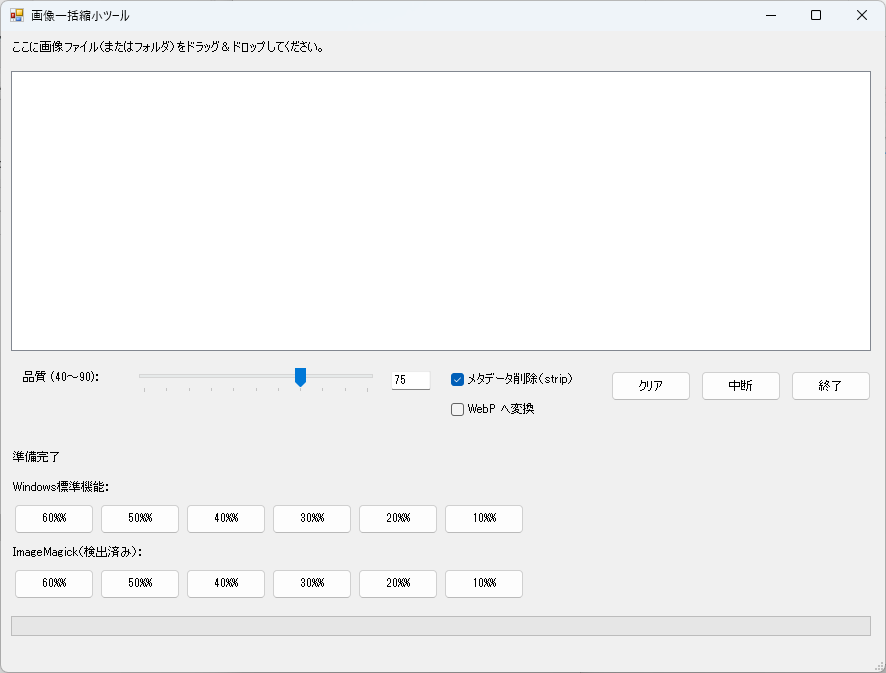
- 上部:ドラッグ&ドロップで画像を追加
- 中央:縮小率ボタン(Windows標準/ImageMagick)
- 右側:メタデータ削除・WebP変換などオプション
- 下部:進捗バーとステータス表示
直感的に操作できるため、PowerShellがわからない人にも使いやすい構成です。
使用している技術とポイント
Windowsフォームを使ったGUI化
PowerShell でも Windows.Forms を使えば、GUIアプリを作成できます。
- ListBox にドラッグ&ドロップ
- TrackBar(スライダー)で品質調整
- FlowLayoutPanel に縮小ボタンを整列
- プログレスバーで進行状況表示
業務ツールのような自然なUIに仕上がっています。
EXIF Orientation対応(画像の向きを正す)
スマホ写真は EXIF に「向き」が記録されているため、縮小時にその情報を反映しないと横向きになってしまいます。
本ツールでは、
switch ($orientation) {
    3 { Rotate180 }
    6 { Rotate90 }
    8 { Rotate270 }
}といった処理で正しい向きへ補正しています。
ImageMagickとの連携
ImageMagick が PC に入っていれば自動検出し専用ボタン(IM版縮小ボタン)が有効化されます。
IM版は次のような高度な処理が可能です:
-auto-orient向き調整-stripメタデータ削除-qualityJPEG品質指定-sampling-factor 4:2:0圧縮効率の最適化
結果として Windows標準モードよりも 画質が良いまま容量を大幅に削減できます。
ImageMagick は別途ダウンロードしてインストールしてください。
-

-
ImageMagick のダウンロードはこちら
imagemagick.org

中断ボタンによるキャンセル
大量のファイルを処理している途中で止めたい場合があります。
そのため $script:cancelRequested フラグを用意し、ループごとにチェックしています。
if ($script:cancelRequested) {
    break
}ユーザー体験がかなり良くなるポイントです。
進捗バーと DoEvents
PowerShell の GUI で進行状況をリアルタイム更新するには内部で DoEvents() を使用します。
[System.Windows.Forms.Application]::DoEvents()これによりUIが固まらず、実用的なアプリに仕上がります。
ソースコード
Githubでの掲載
ソースコードが570行あるため Github にも掲載しております。
-
-
GitHub - kumayy-dev/ImageResize-GUI-PowerShell · GitHub
github.com

ソースコードの全文
Add-Type -AssemblyName System.Windows.Forms
Add-Type -AssemblyName System.Drawing

[System.Windows.Forms.Application]::EnableVisualStyles()

# 対象拡張子
$supportedExtensions = @(".jpg", ".jpeg", ".png", ".bmp", ".gif")

# 中断フラグ
$script:cancelRequested = $false

# ------------------------------------------------------------
# ImageMagick 検出関数
# ------------------------------------------------------------
function Find-ImageMagick {
    try {
        $cmd = Get-Command magick.exe -ErrorAction SilentlyContinue
        if ($cmd) { return $cmd.Path }
    } catch {}

    $searchBases = @(
        "C:\Program Files",
        "C:\Program Files (x86)"
    )

    foreach ($base in $searchBases) {
        if (-not (Test-Path $base)) { continue }
        try {
            $imDirs = Get-ChildItem -Path $base -Directory -Filter "ImageMagick*" -ErrorAction SilentlyContinue
            foreach ($d in $imDirs) {
                $mag = Join-Path $d.FullName "magick.exe"
                if (Test-Path $mag) { return $mag }
            }
        } catch {}
    }

    return $null
}

$magickPath  = Find-ImageMagick
$hasMagick   = -not [string]::IsNullOrEmpty($magickPath)

# ------------------------------------------------------------
# フォーム作成
# ------------------------------------------------------------
$form                = New-Object System.Windows.Forms.Form
$form.Text           = "画像一括縮小ツール"
$form.Width          = 900
$form.Height         = 680
$form.StartPosition  = "CenterScreen"

$label               = New-Object System.Windows.Forms.Label
$label.Text          = "ここに画像ファイル(またはフォルダ)をドラッグ&ドロップしてください。"
$label.AutoSize      = $true
$label.Top           = 10
$label.Left          = 10

$listBox             = New-Object System.Windows.Forms.ListBox
$listBox.Top         = 40
$listBox.Left        = 10
$listBox.Width       = 860
$listBox.Height      = 280
$listBox.AllowDrop   = $true

# オプションパネル(品質・メタデータ・WebP・クリア・中断・終了)
$optionsPanel              = New-Object System.Windows.Forms.Panel
$optionsPanel.Top          = 330
$optionsPanel.Left         = 10
$optionsPanel.Width        = 860
$optionsPanel.Height       = 80

# 品質ラベル
$qualityLabel              = New-Object System.Windows.Forms.Label
$qualityLabel.Text         = "品質 (40~90):"
$qualityLabel.AutoSize     = $true
$qualityLabel.Top          = 10
$qualityLabel.Left         = 10

# 品質スライダー
$qualityTrackBar           = New-Object System.Windows.Forms.TrackBar
$qualityTrackBar.Minimum   = 40
$qualityTrackBar.Maximum   = 90
$qualityTrackBar.Value     = 75
$qualityTrackBar.TickFrequency = 5
$qualityTrackBar.SmallChange   = 1
$qualityTrackBar.LargeChange   = 5
$qualityTrackBar.Top       = 5
$qualityTrackBar.Left      = 120
$qualityTrackBar.Width     = 250

# 品質テキストボックス
$qualityTextBox            = New-Object System.Windows.Forms.TextBox
$qualityTextBox.Top        = 10
$qualityTextBox.Left       = 380
$qualityTextBox.Width      = 40
$qualityTextBox.Text       = $qualityTrackBar.Value.ToString()

# メタデータ削除チェック
$stripMetadataCheck        = New-Object System.Windows.Forms.CheckBox
$stripMetadataCheck.Text   = "メタデータ削除(strip)"
$stripMetadataCheck.AutoSize = $true
$stripMetadataCheck.Top    = 10
$stripMetadataCheck.Left   = 440
$stripMetadataCheck.Checked = $true

# WebP変換チェック
$webpCheck                 = New-Object System.Windows.Forms.CheckBox
$webpCheck.Text            = "WebP へ変換"
$webpCheck.AutoSize        = $true
$webpCheck.Top             = 40
$webpCheck.Left            = 440
$webpCheck.Checked         = $false

# クリアボタン(オプションパネル内)
$clearBtn = New-Object System.Windows.Forms.Button
$clearBtn.Width  = 80
$clearBtn.Height = 30
$clearBtn.Text   = "クリア"
$clearBtn.Top    = 10
$clearBtn.Left   = 600

# 中断ボタン(クリアの右)
$cancelBtn = New-Object System.Windows.Forms.Button
$cancelBtn.Width  = 80
$cancelBtn.Height = 30
$cancelBtn.Text   = "中断"
$cancelBtn.Top    = 10
$cancelBtn.Left   = 690

# 終了ボタン(その右)
$exitBtn = New-Object System.Windows.Forms.Button
$exitBtn.Width  = 80
$exitBtn.Height = 30
$exitBtn.Text   = "終了"
$exitBtn.Top    = 10
$exitBtn.Left   = 780

$optionsPanel.Controls.Add($qualityLabel)
$optionsPanel.Controls.Add($qualityTrackBar)
$optionsPanel.Controls.Add($qualityTextBox)
$optionsPanel.Controls.Add($stripMetadataCheck)
$optionsPanel.Controls.Add($webpCheck)
$optionsPanel.Controls.Add($clearBtn)
$optionsPanel.Controls.Add($cancelBtn)
$optionsPanel.Controls.Add($exitBtn)

# ステータスラベル
$statusLabel         = New-Object System.Windows.Forms.Label
$statusLabel.Text    = "準備完了"
$statusLabel.AutoSize= $true
$statusLabel.Top     = 420
$statusLabel.Left    = 10

# Windows標準機能グループ
$winGroupLabel              = New-Object System.Windows.Forms.Label
$winGroupLabel.Text         = "Windows標準機能:"
$winGroupLabel.AutoSize     = $true
$winGroupLabel.Top          = 450
$winGroupLabel.Left         = 10

$winButtonPanel             = New-Object System.Windows.Forms.FlowLayoutPanel
$winButtonPanel.Top         = 470
$winButtonPanel.Left        = 10
$winButtonPanel.Width       = 860
$winButtonPanel.Height      = 40
$winButtonPanel.WrapContents = $false
$winButtonPanel.AutoScroll   = $false

# ImageMagickグループ
$imGroupLabel               = New-Object System.Windows.Forms.Label
if ($hasMagick) {
    $imGroupLabel.Text      = "ImageMagick(検出済み):"
} else {
    $imGroupLabel.Text      = "ImageMagick(未検出):"
}
$imGroupLabel.AutoSize      = $true
$imGroupLabel.Top           = 515
$imGroupLabel.Left          = 10

$imButtonPanel              = New-Object System.Windows.Forms.FlowLayoutPanel
$imButtonPanel.Top          = 535
$imButtonPanel.Left         = 10
$imButtonPanel.Width        = 860
$imButtonPanel.Height       = 40
$imButtonPanel.WrapContents = $false
$imButtonPanel.AutoScroll   = $false

# 進行バー(いちばん下)
$progressBar                = New-Object System.Windows.Forms.ProgressBar
$progressBar.Top            = 585
$progressBar.Left           = 10
$progressBar.Width          = 860
$progressBar.Height         = 20
$progressBar.Minimum        = 0
$progressBar.Step           = 1

# フォームに追加
$form.Controls.Add($label)
$form.Controls.Add($listBox)
$form.Controls.Add($optionsPanel)
$form.Controls.Add($statusLabel)
$form.Controls.Add($winGroupLabel)
$form.Controls.Add($winButtonPanel)
$form.Controls.Add($imGroupLabel)
$form.Controls.Add($imButtonPanel)
$form.Controls.Add($progressBar)

# ------------------------------------------------------------
# 品質スライダーとテキストボックス同期
# ------------------------------------------------------------
$script:isUpdatingQuality = $false

$qualityTrackBar.Add_ValueChanged({
    if ($script:isUpdatingQuality) { return }
    $script:isUpdatingQuality = $true
    $qualityTextBox.Text = $qualityTrackBar.Value.ToString()
    $script:isUpdatingQuality = $false
})

$qualityTextBox.Add_TextChanged({
    if ($script:isUpdatingQuality) { return }
    $value = 0
    if ([int]::TryParse($qualityTextBox.Text, [ref]$value)) {
        if     ($value -lt 40) { $value = 40 }
        elseif ($value -gt 90) { $value = 90 }
        $script:isUpdatingQuality = $true
        $qualityTrackBar.Value = $value
        $qualityTextBox.Text   = $value.ToString()
        $script:isUpdatingQuality = $false
    }
})

# ------------------------------------------------------------
# Drag & Drop 処理
# ------------------------------------------------------------
$listBox.Add_DragEnter({
    param($sender, $e)
    if ($e.Data.GetDataPresent([System.Windows.Forms.DataFormats]::FileDrop)) {
        $e.Effect = [System.Windows.Forms.DragDropEffects]::Copy
    }
})

$listBox.Add_DragDrop({
    param($sender, $e)
    $paths = $e.Data.GetData([System.Windows.Forms.DataFormats]::FileDrop)

    foreach ($path in $paths) {
        if (-not (Test-Path $path)) { continue }
        $item = Get-Item $path

        if ($item.PSIsContainer) {
            Get-ChildItem $item.FullName -Recurse -File |
                Where-Object { $supportedExtensions -contains $_.Extension.ToLower() } |
                ForEach-Object {
                    if (-not $listBox.Items.Contains($_.FullName)) {
                        [void]$listBox.Items.Add($_.FullName)
                    }
                }
        }
        else {
            $ext = $item.Extension.ToLower()
            if ($supportedExtensions -contains $ext) {
                if (-not $listBox.Items.Contains($item.FullName)) {
                    [void]$listBox.Items.Add($item.FullName)
                }
            }
        }
    }

    $statusLabel.Text = "ファイル数: {0}" -f $listBox.Items.Count
})

# ------------------------------------------------------------
# Windows標準機能での縮小処理(EXIF 向き対応+中断対応)
# ------------------------------------------------------------
function Resize-ImagesWindows {
    param(
        [double]$Scale,
        [int]$JpegQuality,
        [System.Windows.Forms.ListBox]$ListBox,
        [System.Windows.Forms.Label]$StatusLabel,
        [System.Windows.Forms.ProgressBar]$ProgressBar,
        [System.Windows.Forms.Form]$Form
    )

    if ($ListBox.Items.Count -eq 0) {
        [System.Windows.Forms.MessageBox]::Show("ファイルが追加されていません。")
        return
    }

    Add-Type -AssemblyName System.Drawing

    $percent = [int]($Scale * 100)
    $StatusLabel.Text = "縮小中...(Windows標準機能 / ${percent}% の縮小処理)"
    $Form.UseWaitCursor = $true
    $script:cancelRequested = $false

    $ProgressBar.Value   = 0
    $ProgressBar.Maximum = $ListBox.Items.Count

    foreach ($path in $ListBox.Items) {
        if ($script:cancelRequested) {
            $StatusLabel.Text = "中断しました(Windows標準機能 / ${percent}% の縮小処理)"
            break
        }

        if (-not (Test-Path $path)) { continue }

        try {
            $file = Get-Item $path
            $img  = [System.Drawing.Image]::FromFile($file.FullName)

            # EXIF Orientation 読み取り・回転
            $orientationId = 0x0112
            if ($img.PropertyIdList -contains $orientationId) {
                $prop        = $img.GetPropertyItem($orientationId)
                $orientation = [BitConverter]::ToInt16($prop.Value, 0)

                switch ($orientation) {
                    3 { $img.RotateFlip([System.Drawing.RotateFlipType]::Rotate180FlipNone) }
                    6 { $img.RotateFlip([System.Drawing.RotateFlipType]::Rotate90FlipNone)  }
                    8 { $img.RotateFlip([System.Drawing.RotateFlipType]::Rotate270FlipNone) }
                }

                try { $img.RemovePropertyItem($orientationId) } catch {}
            }

            $newWidth  = [int]($img.Width  * $Scale)
            $newHeight = [int]($img.Height * $Scale)

            if ($newWidth -lt 1 -or $newHeight -lt 1) {
                $img.Dispose()
                continue
            }

            $bmp   = New-Object System.Drawing.Bitmap $newWidth, $newHeight
            $graph = [System.Drawing.Graphics]::FromImage($bmp)

            $graph.InterpolationMode  = [System.Drawing.Drawing2D.InterpolationMode]::HighQualityBicubic
            $graph.CompositingQuality = [System.Drawing.Drawing2D.CompositingQuality]::HighQuality
            $graph.SmoothingMode      = [System.Drawing.Drawing2D.SmoothingMode]::HighQuality
            $graph.PixelOffsetMode    = [System.Drawing.Drawing2D.PixelOffsetMode]::HighQuality

            $graph.DrawImage($img, 0, 0, $newWidth, $newHeight)

            $dir    = Split-Path $file.FullName -Parent
            $outDir = Join-Path $dir ("Resized_{0}" -f $percent)
            if (-not (Test-Path $outDir)) {
                New-Item -ItemType Directory -Path $outDir | Out-Null
            }

            $outPath = Join-Path $outDir $file.Name
            $ext     = $file.Extension.ToLower()

            if ($ext -eq ".jpg" -or $ext -eq ".jpeg") {
                $codec = [System.Drawing.Imaging.ImageCodecInfo]::GetImageEncoders() |
                         Where-Object { $_.MimeType -eq "image/jpeg" }
                $encoder      = [System.Drawing.Imaging.Encoder]::Quality
                $encoderParms = New-Object System.Drawing.Imaging.EncoderParameters(1)
                $encoderParms.Param[0] = New-Object System.Drawing.Imaging.EncoderParameter($encoder, [int64]$JpegQuality)
                $bmp.Save($outPath, $codec, $encoderParms)
            }
            elseif ($ext -eq ".png") {
                $bmp.Save($outPath, [System.Drawing.Imaging.ImageFormat]::Png)
            }
            elseif ($ext -eq ".gif") {
                $bmp.Save($outPath, [System.Drawing.Imaging.ImageFormat]::Gif)
            }
            elseif ($ext -eq ".bmp") {
                $bmp.Save($outPath, [System.Drawing.Imaging.ImageFormat]::Bmp)
            }
            else {
                $bmp.Save($outPath)
            }

            $graph.Dispose()
            $bmp.Dispose()
            $img.Dispose()
        }
        catch {
            [System.Windows.Forms.MessageBox]::Show("Windows標準機能処理中にエラーが発生しました。`n$path`n`n$($_.Exception.Message)")
        }

        if ($ProgressBar.Value -lt $ProgressBar.Maximum) {
            $ProgressBar.PerformStep()
        }
        [System.Windows.Forms.Application]::DoEvents()
    }

    $Form.UseWaitCursor = $false
    if (-not $script:cancelRequested) {
        $StatusLabel.Text = "完了しました(Windows標準機能 / ${percent}% の縮小処理)"
    }
}

# ------------------------------------------------------------
# ImageMagick 縮小処理(auto-orient+中断対応)
# ------------------------------------------------------------
function Resize-ImagesMagick {
    param(
        [double]$Scale,
        [int]$Quality,
        [bool]$StripMetadata,
        [bool]$ConvertWebP,
        [string]$MagickPath,
        [System.Windows.Forms.ListBox]$ListBox,
        [System.Windows.Forms.Label]$StatusLabel,
        [System.Windows.Forms.ProgressBar]$ProgressBar,
        [System.Windows.Forms.Form]$Form
    )

    if (-not (Test-Path $MagickPath)) {
        [System.Windows.Forms.MessageBox]::Show("ImageMagick (magick.exe) が見つかりません。")
        return
    }

    if ($ListBox.Items.Count -eq 0) {
        [System.Windows.Forms.MessageBox]::Show("ファイルが追加されていません。")
        return
    }

    $percent = [int]($Scale * 100)
    $StatusLabel.Text = "縮小中...(ImageMagick / ${percent}% の縮小処理)"
    $Form.UseWaitCursor = $true
    $script:cancelRequested = $false

    $ProgressBar.Value   = 0
    $ProgressBar.Maximum = $ListBox.Items.Count

    foreach ($path in $ListBox.Items) {
        if ($script:cancelRequested) {
            $StatusLabel.Text = "中断しました(ImageMagick / ${percent}% の縮小処理)"
            break
        }

        if (-not (Test-Path $path)) { continue }

        try {
            $file   = Get-Item $path
            $dir    = Split-Path $file.FullName -Parent
            $base   = [System.IO.Path]::GetFileNameWithoutExtension($file.Name)
            $srcExt = [System.IO.Path]::GetExtension($file.Name).ToLower()

            $outDir = Join-Path $dir ("ResizedIM_{0}" -f $percent)
            if (-not (Test-Path $outDir)) {
                New-Item -ItemType Directory -Path $outDir | Out-Null
            }

            if ($ConvertWebP) {
                $destExt  = ".webp"
            } else {
                $destExt  = $srcExt
            }
            $outPath = Join-Path $outDir ($base + $destExt)

            $args = @(
                "`"$($file.FullName)`"",
                "-auto-orient",
                "-resize", "${percent}%",
                "-quality", $Quality.ToString()
            )

            if ($destExt -in @(".jpg", ".jpeg", ".webp")) {
                $args += @("-sampling-factor", "4:2:0")
            }

            if ($StripMetadata) {
                $args += "-strip"
            }

            $args += "`"$outPath`""

            $psi = New-Object System.Diagnostics.ProcessStartInfo
            $psi.FileName = $MagickPath
            $psi.Arguments = $args -join " "
            $psi.CreateNoWindow = $true
            $psi.UseShellExecute = $false
            $psi.RedirectStandardOutput = $true
            $psi.RedirectStandardError  = $true

            $proc = New-Object System.Diagnostics.Process
            $proc.StartInfo = $psi
            [void]$proc.Start()
            $null   = $proc.StandardOutput.ReadToEnd()
            $stderr = $proc.StandardError.ReadToEnd()
            $proc.WaitForExit()

            if ($proc.ExitCode -ne 0) {
                [System.Windows.Forms.MessageBox]::Show("ImageMagick処理中にエラーが発生しました。`n$path`n`n$stderr")
            }
        }
        catch {
            [System.Windows.Forms.MessageBox]::Show("ImageMagick処理中にエラーが発生しました。`n$path`n`n$($_.Exception.Message)")
        }

        if ($ProgressBar.Value -lt $ProgressBar.Maximum) {
            $ProgressBar.PerformStep()
        }
        [System.Windows.Forms.Application]::DoEvents()
    }

    $Form.UseWaitCursor = $false
    if (-not $script:cancelRequested) {
        $StatusLabel.Text = "完了しました(ImageMagick / ${percent}% の縮小処理)"
    }
}

# ------------------------------------------------------------
# ボタン生成(Tag に倍率を入れて sender.Tag から取得)
# ------------------------------------------------------------
$scales = @(60, 50, 40, 30, 20, 10)

# Windows標準機能ボタン
foreach ($p in $scales) {
    $btn = New-Object System.Windows.Forms.Button
    $btn.Width  = 80
    $btn.Height = 30
    $btn.Text   = "{0}%%" -f $p
    $btn.Tag    = $p / 100

    $btn.Add_Click({
        param($sender, $e)
        $scale = [double]$sender.Tag
        $q = $qualityTrackBar.Value
        Resize-ImagesWindows -Scale $scale -JpegQuality $q -ListBox $listBox -StatusLabel $statusLabel -ProgressBar $progressBar -Form $form
    })

    $winButtonPanel.Controls.Add($btn)
}

# ImageMagick ボタン
foreach ($p in $scales) {
    $btnIM = New-Object System.Windows.Forms.Button
    $btnIM.Width  = 80
    $btnIM.Height = 30
    $btnIM.Text   = "{0}%%" -f $p
    $btnIM.Tag    = $p / 100
    $btnIM.Enabled = $hasMagick

    $btnIM.Add_Click({
        param($sender, $e)
        $scale = [double]$sender.Tag
        $q  = $qualityTrackBar.Value
        $st = $stripMetadataCheck.Checked
        $wp = $webpCheck.Checked
        Resize-ImagesMagick -Scale $scale -Quality $q -StripMetadata $st -ConvertWebP $wp -MagickPath $magickPath -ListBox $listBox -StatusLabel $statusLabel -ProgressBar $progressBar -Form $form
    })

    $imButtonPanel.Controls.Add($btnIM)
}

# クリア/中断/終了ボタンの動作
$clearBtn.Add_Click({
    $listBox.Items.Clear()
    $statusLabel.Text = "ファイルがクリアされました。"
    $progressBar.Value = 0
})

$cancelBtn.Add_Click({
    $script:cancelRequested = $true
})

$exitBtn.Add_Click({
    $form.Close()
})

# ------------------------------------------------------------
# フォーム表示
# ------------------------------------------------------------
[void]$form.ShowDialog()バッチファイルから起動(アプリ化)
次のコードを ImageResize-GUI.bat として保存すると、ダブルクリックで GUI アプリとして起動でき、コマンドプロンプトウィンドウも残りません。
@echo off
start "" powershell -NoProfile -ExecutionPolicy Bypass -File "%~dp0ImageResize-GUI.ps1"
exitショートカットをデスクトップに置けば、完全にアプリ感覚で使えます。
ImageMagick を使うとここまで変わる(圧縮比較)
実際の画像で比較すると:
| 画像 | ファイルサイズ | 備考 |
|---|---|---|
| 元画像 | 5.2 MB | スマホ撮影 |
| Windows標準 60% | 1.3 MB | 画質は十分 |
| ImageMagick 60% | 310 KB | 同サイズで圧倒的に軽い |
| ImageMagick 60% + WebP | 150 KB | Web使うなら最強 |
WebPにするとさらに容量を半分以下に抑えることができます。
まとめ
今回紹介した PowerShell 画像縮小ツールは、
- 縮小
- 回転補正
- メタデータ削除
- WebP変換
- ImageMagick連携
- 中断処理
- 進行バー付きGUI
と、実作業で必要な機能をすべて網羅しています。
PowerShell は「コマンドラインのツール」という印象が強いですが、GUI を組み合わせることで 立派なアプリケーションに進化できます。
ぜひカスタマイズして、自分の作業スタイルに合わせたツール作りにも挑戦してみてください!
【改訂新版】 Windows PowerShell ポケットリファレンス
PowerShell の基本コマンドから応用スクリプトまで、すぐ動くサンプルで学べる実践書です。
ファイル操作・条件分岐・ループ・エラーハンドリングなど、“実際に手を動かす” ことで理解が進みます。
PowerShell の基礎力と応用力を同時に高めたい人におすすめです。
おすすめポイント:
- 動作するサンプルが豊富で理解が早い
- 自動化に必要な基礎文法〜実践スクリプトを広くカバー
- 初級者から中級者へのステップアップに最適